PERFORMANCE SAMPLING
Record a performance.
Make it playable.
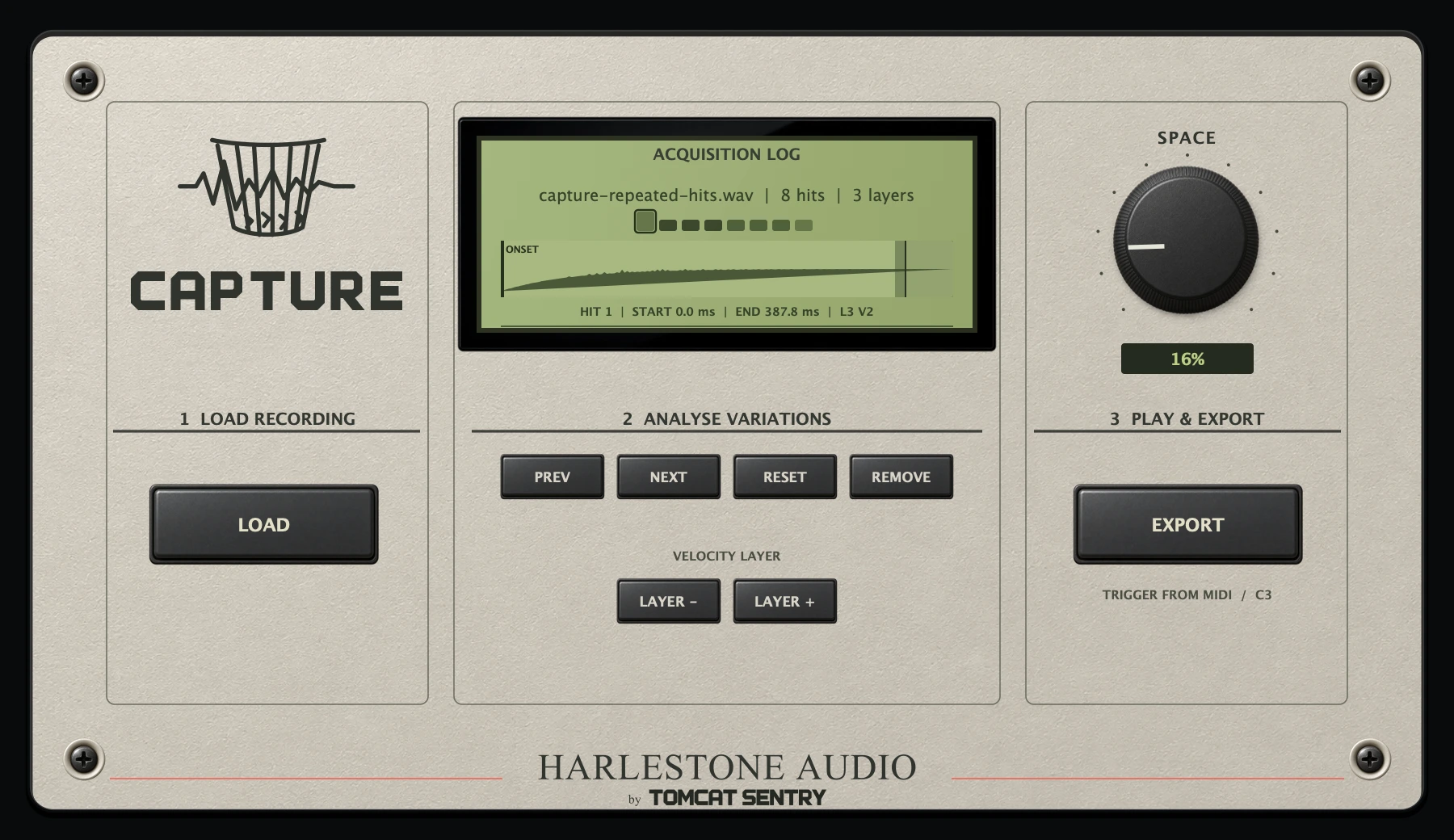
Turn repeated performances of one sound into an instrument that keeps their variation. Capture finds the hits, maps their playing strength and lets you play them from MIDI.
Explore the interface ↓
01 · THE RECORDING
Start with one sound. Play it several ways.
Record repeated hits of the same drum, object or acoustic sound. Include quieter and harder strikes, with enough space between them for each decay.
Press Load and choose a WAV or AIFF. Capture detects the hits and organises them into a playable instrument. The acquisition log shows the recording name, hit count and number of velocity layers.
View the full interface ↗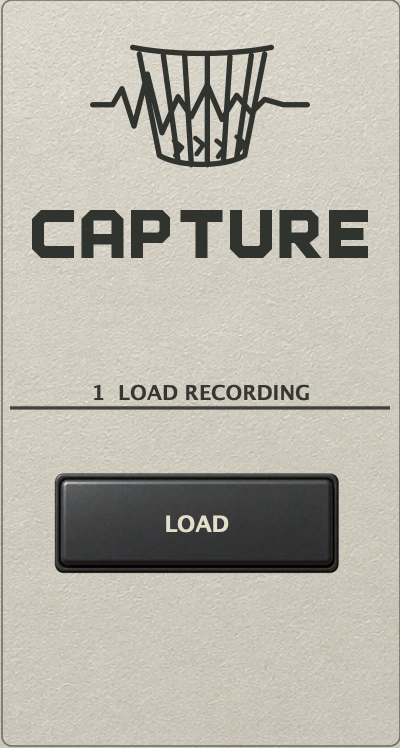
02 · THE HITS
Keep the attack. Choose the ending.
Select a hit in the acquisition log, or use Prev and Next to move through the recording. The waveform shows the selected hit; the onset marker helps you locate its attack.
Drag the start and end boundaries to refine the slice. Zoom with the mouse wheel and drag the background to pan. Reset restores the analysed trim; Remove discards a false detection.
View the full interface ↗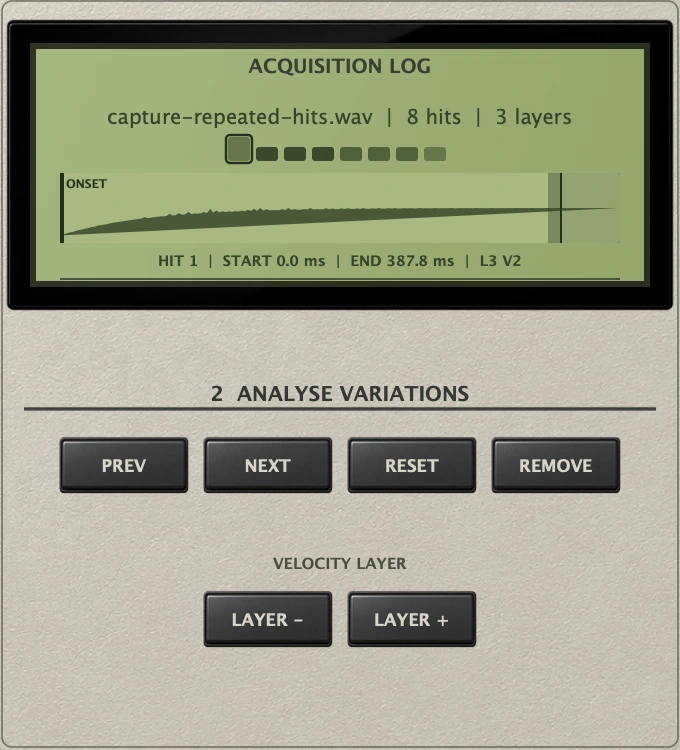
03 · THE VARIATIONS
A softer note should feel different.
Velocity layers group hits by playing strength. Quieter MIDI notes select quieter performances; stronger notes bring forward the harder strikes.
Round robins rotate through variations within a layer, so repeated notes can use different recorded hits. Use Layer − and Layer + to move the selected hit when its automatic placement needs correcting.
View the full interface ↗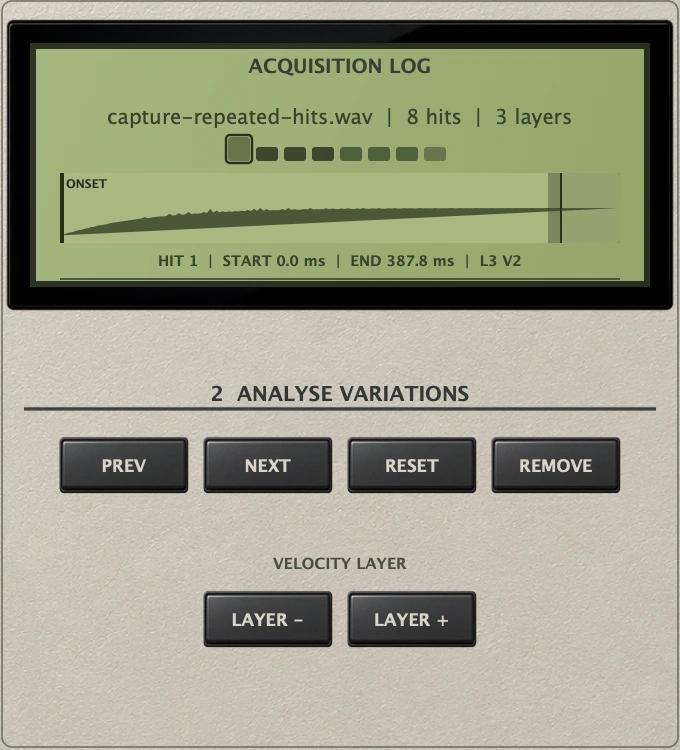
04 · THE INSTRUMENT
Play the performance from your keyboard.
Send MIDI notes to Capture. Note velocity chooses the layer and successive notes cycle through its variations. You can also audition individual hits in the acquisition display.
Space adds stereo ambience to the played instrument. Keep it low for a little depth, or raise it to make the room part of the sound.
View the full interface ↗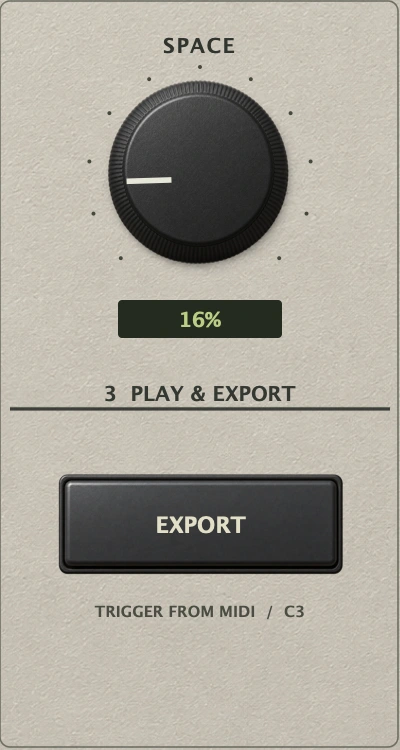
05 · THE EXPORT
Keep the slices and their mapping.
Export creates a new instrument folder containing 24-bit WAV slices and a capture-instrument.json mapping file. The mapping records velocity ranges, layers and round-robin assignments.
The slices can become the starting point for another sampler. Export does not create a Kontakt or EXS instrument, and the Space effect is not printed into the exported slices.
View the full interface ↗
BEFORE YOU RECORD
Give Capture
good material.
One sound. Several takes.
A snare, a hand clap, a struck glass or a percussion sound. Record several repetitions at different strengths to give the instrument useful variation.
Leave room for the decay.
Separate the hits so their tails do not overlap. Use a clean recording without clipping, then review the detected boundaries before playing.
Keep the original recording.
Project recall stores your edits and mapping, but Capture still needs the source file at its saved location. Keep it with your session and preserve that path.
Planned for macOS as an Audio Unit instrument and a standalone app. The Audio Unit requires a compatible DAW or host; the standalone app runs without a DAW.
Make your recordings
part of the performance.
Explore the upcoming suite ↗Capture 0.5.14 · macOS Audio Unit